
Build accurate quotes in minutes with a free Excel quote template. This editable spreadsheet (.xlsx) helps small businesses, freelancers and contractors produce a professional quotation in Excel with itemized pricing, automatic totals and clear terms. Download it, type in your products or services and send a polished quote the same day a customer asks.
What Is an Excel Quote Template?
An Excel quote template is a pre-formatted spreadsheet that already contains the sections a price quote needs: your business details, the customer’s information, a table of items with quantities and prices, subtotals, taxes and terms. Because it runs in Microsoft Excel, the calculations happen automatically. Change a quantity or a unit price and the line total, subtotal and grand total update instantly, which removes most arithmetic mistakes from the quoting process.
Why Use Excel for Quotes?
Excel is familiar to most office workers, works offline and can be customized without special software. It lets you add columns for discounts, item codes or delivery dates, change the currency, protect formulas from accidental edits and save every quote as its own file. Many businesses start with an Excel quote template and keep using it for years because it is flexible, low-cost and easy to hand over to a new employee.
Key Features of a Good Quote Spreadsheet
- Header area: space for your logo, company name, address and contact details.
- Customer section: name, address, reference and contact person.
- Quote number and dates: issue date and expiry date.
- Item table: description, quantity, unit price and line total.
- Automatic formulas: subtotal, discount, tax and grand total.
- Terms and notes: payment terms, delivery information and validity.
- Print-ready layout: a page setup that fits a standard sheet of paper or exports cleanly to PDF.
How to Create a Quote in Excel Step by Step
- Download and save a copy. Give the file a new name that includes the customer and quote number.
- Enter your company details. Replace the sample header with your name, logo and contact information.
- Add the customer’s information. Fill in the name, address and reference.
- List the items. Type each product or service with its quantity and unit price.
- Check the formulas. Confirm that totals, discounts and taxes calculate correctly.
- Add terms. State the payment terms, delivery time and validity date.
- Export and send. Save as a PDF for emailing or print the sheet.
Excel Formulas That Make Quoting Faster
A few simple formulas do most of the work. Multiplying quantity by unit price gives the line total. The SUM function adds the line totals to produce the subtotal. A percentage formula calculates discounts or tax, and adding the results produces the grand total. You can also use data validation to create a drop-down list of your standard products so that prices are filled in automatically. If you are new to Excel, keep the existing formulas as they are and only change the numbers in the input cells.
Tips for Professional-Looking Quotes
Use one or two fonts, align numbers to the right and keep enough white space so the quote is easy to read. Insert your logo at the top and use a subtle color for the table header. Describe each item clearly, and place the total where the customer’s eye will find it. Lock or protect the cells that contain formulas to avoid accidental changes. Before sending, read the quote once more and confirm that names, dates and totals are correct.
Common Mistakes to Avoid
Typical mistakes include overwriting a formula with a typed number, forgetting to update the quote date, sending a quote without an expiry date and leaving sample text in place. Another risk is saving over the blank template. Always use Save As to create a new file for each quote, and keep the original untouched so it is ready for the next customer.
Who Can Use This Excel Quote Template?
Contractors, consultants, freelancers, retailers, wholesalers, service companies and start-ups can all use this template. It is flexible enough to serve as a quotation, an estimate or a simple proposal, and you can modify the layout to suit your industry.
Protecting and Sharing Your Excel Quotes
Once your template is ready, protect the sheet so formulas cannot be changed by mistake. Choose Review and then Protect Sheet, and leave only the input cells unlocked. Store your master template in a shared folder if several people send quotes, and agree on a numbering system to avoid duplicates. When you send a quote, export it to PDF, and keep the Excel file for your records.
Download Free Excel Quote Templates
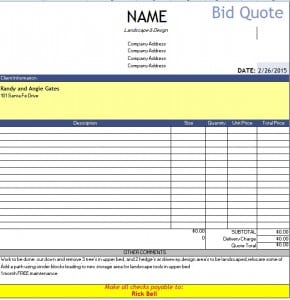

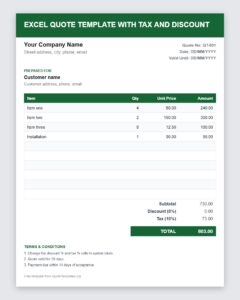
Download Free Excel Quote Template with Tax and Discount (Excel)
Frequently Asked Questions About Excel Quote Templates
Is this Excel quote template free?
Yes. You can download it, edit it and use it for your own business quotes at no cost.
Which programs can open the template?
It is a standard .xlsx workbook, so it opens in Microsoft Excel and in most spreadsheet programs that support the format.
Do the totals calculate automatically?
Excel calculates totals from the formulas in the sheet. Enter your quantities and prices and check that the results look correct before you send the quote.
Can I add my company logo?
Yes. Use the Insert Picture feature in Excel to place your logo in the header area, then save the file as your master template.
How do I send the quote to a customer?
Save the sheet as a PDF and attach it to an email, or print it and deliver it in person. A PDF keeps the layout the same on every device.
Can I use this template as an estimate or invoice?
You can adapt the layout by changing the title and terms, but estimates, quotes and invoices serve different purposes, so update the wording to make the purpose clear.
