


Word is the easiest way to create a quote that looks like it came from a design studio. These free Word quote templates give you more than nine editable Microsoft Word documents for professional quotations, with room for your logo, itemized prices and terms. Download a layout, personalize it and send a polished quote in minutes.
What Is a Word Quote Template?
A Word quote template is a pre-formatted document in Microsoft Word that already contains the structure of a quote: a header for your business, customer details, a table of items and prices, totals and terms. You type over the sample text, adjust the table and save the document. Because Word is so widely used, you can easily share the file, edit it on almost any computer and export it to PDF.
Benefits of Using Word for Quotes
Word offers freedom of design. You can change fonts, colors and spacing, add your logo, insert photos or product images and write short descriptions in a way that a spreadsheet cannot easily manage. It is ideal for quotes that need more explanation, such as services, projects or custom work. Templates save time, keep your documents consistent and help you avoid forgetting important details.
What to Include in a Professional Quote
- Header: your logo, business name, address, phone and email.
- Quote details: quote number, issue date and expiry date.
- Customer information: name, company and address.
- Description of products or services: clear, specific and complete.
- Prices: quantity, unit price and line totals.
- Summary: subtotal, discounts, taxes and grand total.
- Terms: payment methods, delivery time, warranty and cancellation.
- Acceptance section: a place for the customer to sign and date.
How to Use a Word Quote Template Step by Step
- Download and open the file. If it opens in Protected View, click Enable Editing.
- Save a new copy. Use Save As and include the customer’s name and quote number.
- Replace the header. Insert your logo and business details.
- Edit the table. Type your items, quantities and prices. Add rows by pressing Tab in the last cell.
- Check the totals. Word tables do not always calculate automatically, so double-check the arithmetic.
- Update terms and dates. Adjust payment terms, validity and delivery information.
- Export to PDF. Use File and Save As PDF to send a version that cannot be changed accidentally.
Formatting Tips for Word Quote Templates
A few formatting habits make Word quotes look professional. Use the built-in table tools to align columns, right-align the price columns and keep the same number of decimal places throughout. Turn on the ruler to keep margins consistent, and use styles for headings so they look the same on every page. Avoid many different colors, and choose one accent color that matches your logo.
If your quote runs to more than one page, repeat the table header row on each page and add page numbers in the footer. Set the document properties so that the file name and author show your business name, and remove any hidden comments before sending. These small steps make your document look careful and trustworthy.
Finally, keep your master template in a protected folder, and treat every finished quote as a copy. That way you always have a clean starting point and never risk overwriting your standard layout.
Download Free Word Quote Templates
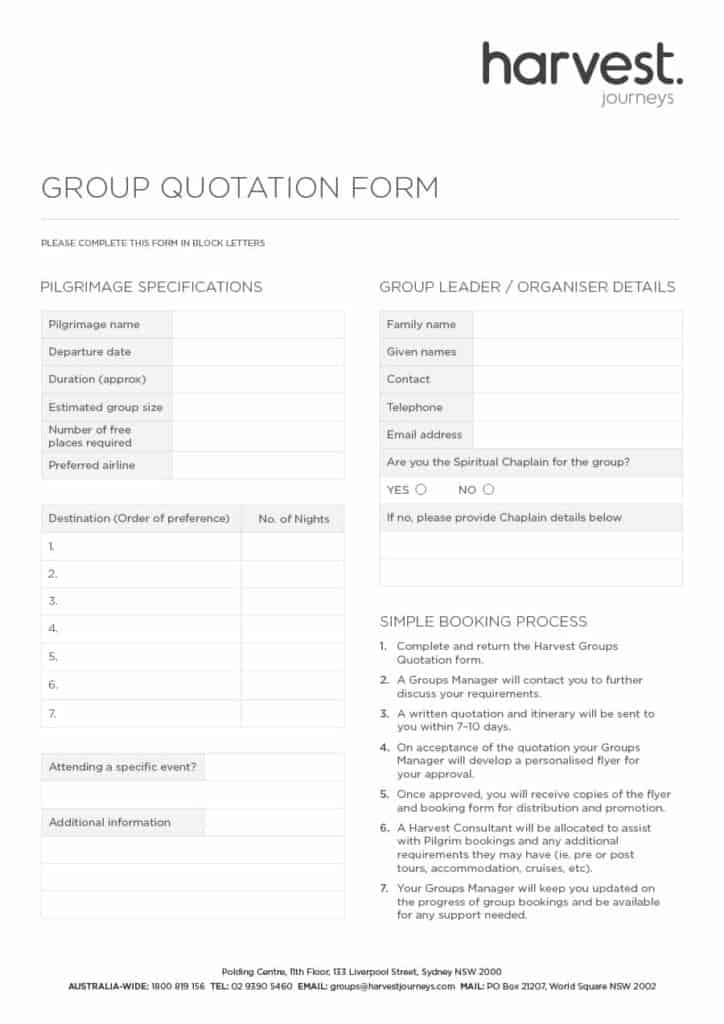
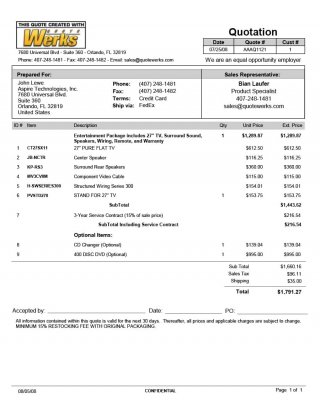
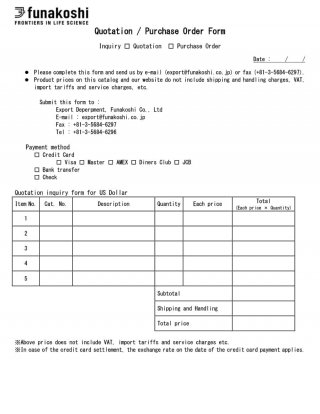
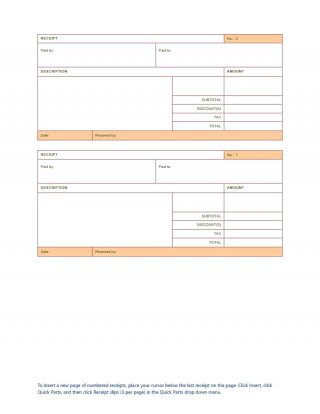
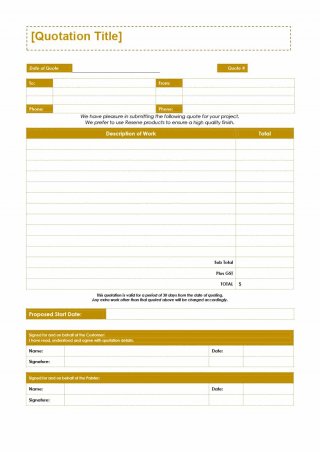
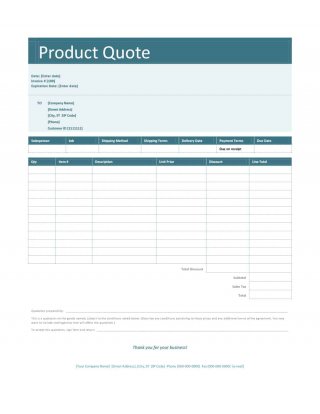
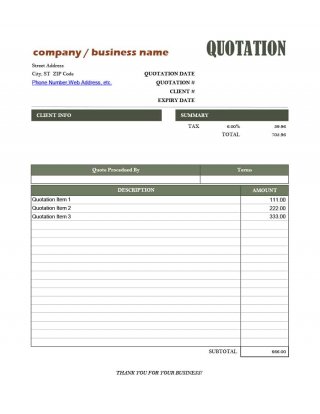
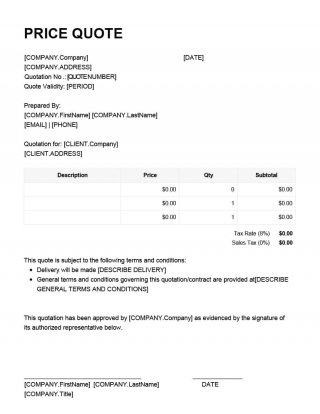
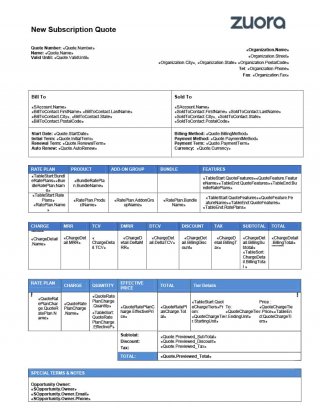
Every template below has a preview image and a download button. The downloads are Word documents in the .docx and .doc formats.
Download Word Quote Templates:





Customizing Your Word Quote
Start by placing your logo and choosing a color that matches your branding. Keep the fonts simple, such as one for headings and one for body text, and maintain consistent alignment. If you offer several services, prepare a few versions of the quote with the descriptions already filled in, so you can adapt them quickly. Save your best version as a master template and store it in a folder where your team can find it.
Word or Excel for Quotes?
Word is better when your quote needs text, descriptions and design flexibility. Excel is better when you need automatic calculations and long item lists. If you are not sure, try a Word template first, and switch to Excel if you find that you are spending too much time on calculations.
Who Should Use These Word Quote Templates?
Small business owners, consultants, contractors, freelancers, agencies and sales teams can all use these templates. They are also handy for students and new entrepreneurs who want a professional layout without design skills.
Frequently Asked Questions About Word Quote Templates
Are these Word quote templates free?
Yes. You can download, edit and use them for your own business at no cost.
Which versions of Word can open them?
The templates are in the .docx and .doc formats, which open in Microsoft Word and in most word processors that support them.
Do the totals calculate automatically in Word?
Not always. Word tables can use formulas, but it is simpler to enter the amounts manually and double-check them, or to use an Excel template if you need automatic calculations.
How do I add my logo?
Click in the header area, choose Insert Picture and select your logo file. Resize it and save the document as your master template.
Should I send the quote as a Word file or a PDF?
Send a PDF in most cases because it keeps the layout the same on every device and prevents accidental edits.
Can I use these templates for services and products?
Yes. Change the descriptions and columns so that they match what you are selling.


